Create a journal entry
Record a manual double-entry transaction in the General Ledger. You will add the journal header, enter balanced debit and credit lines, and save it as a draft ready to post.
Before you start
- An active chart of accounts with at least two postable accounts.
- An open accounting period covering the journal date.
Open the General Ledger and go to Journal Entries.
From the dashboard sidebar, choose General Ledger, then Journals. The list shows existing journals with their status.
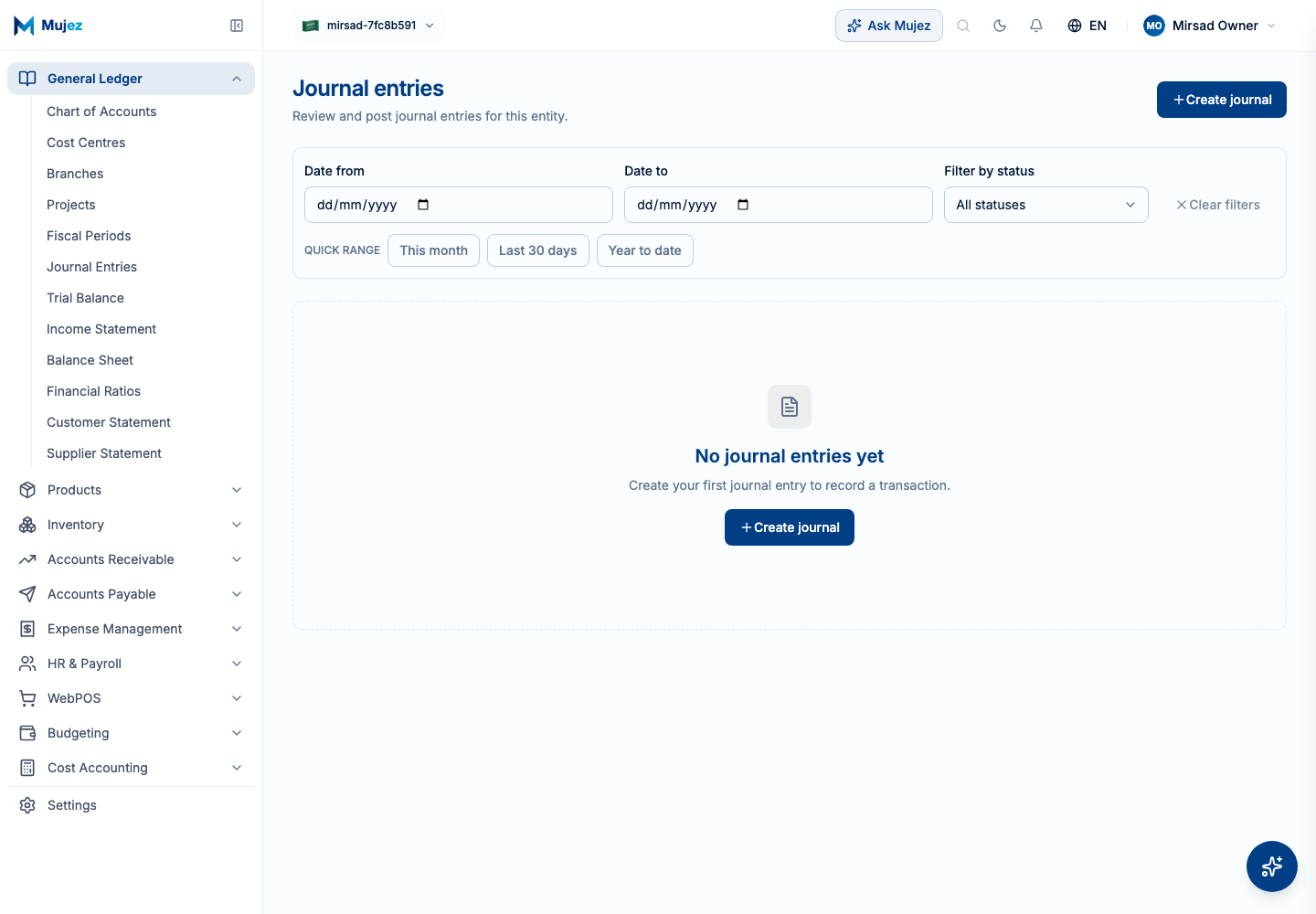
Click "Create journal" to start a new draft.
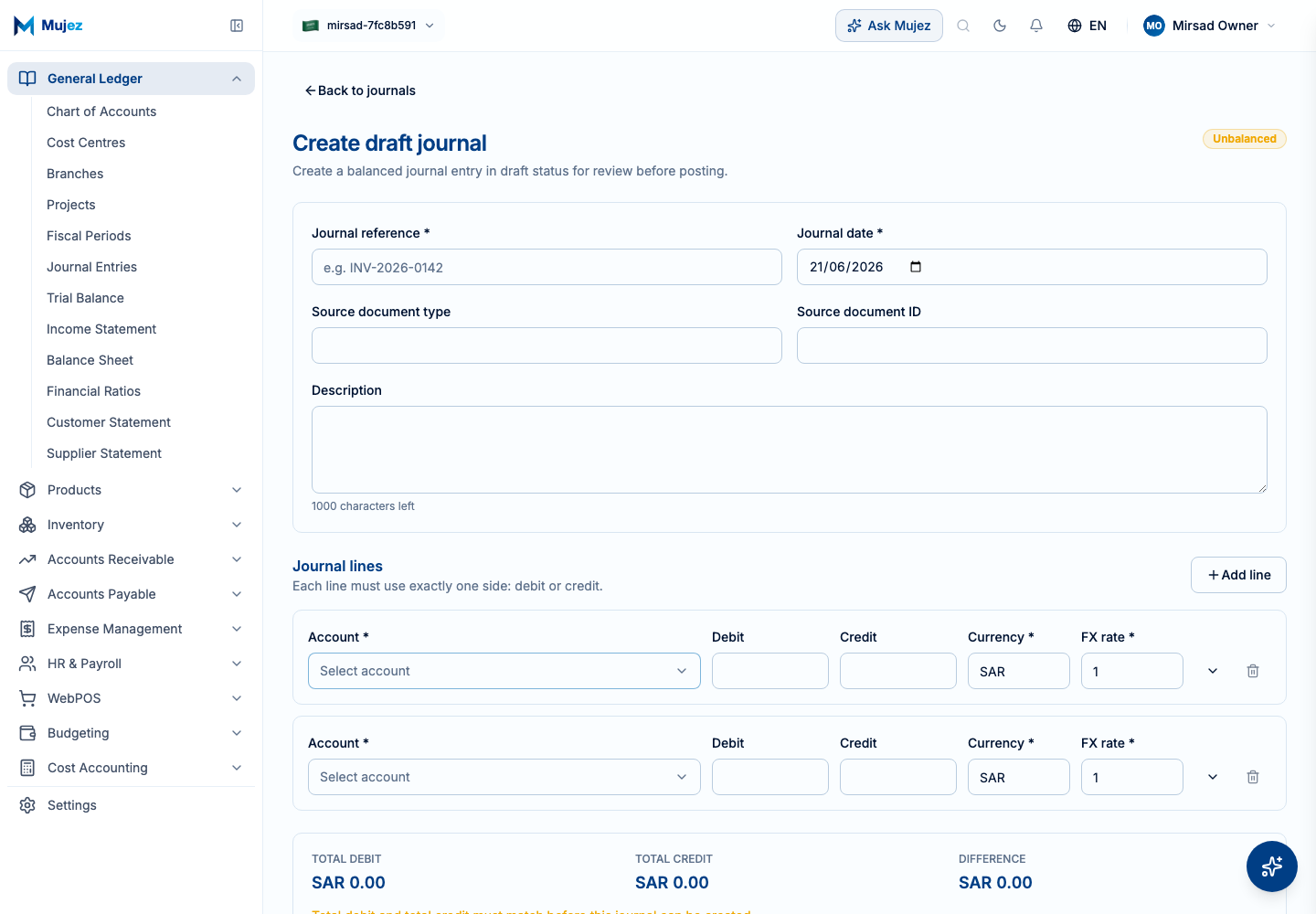
Fill in the journal header.
Set the journal date (defaults to today) and add a description. Reference type, reference ID, and correlation ID are optional and link the journal to a source document.
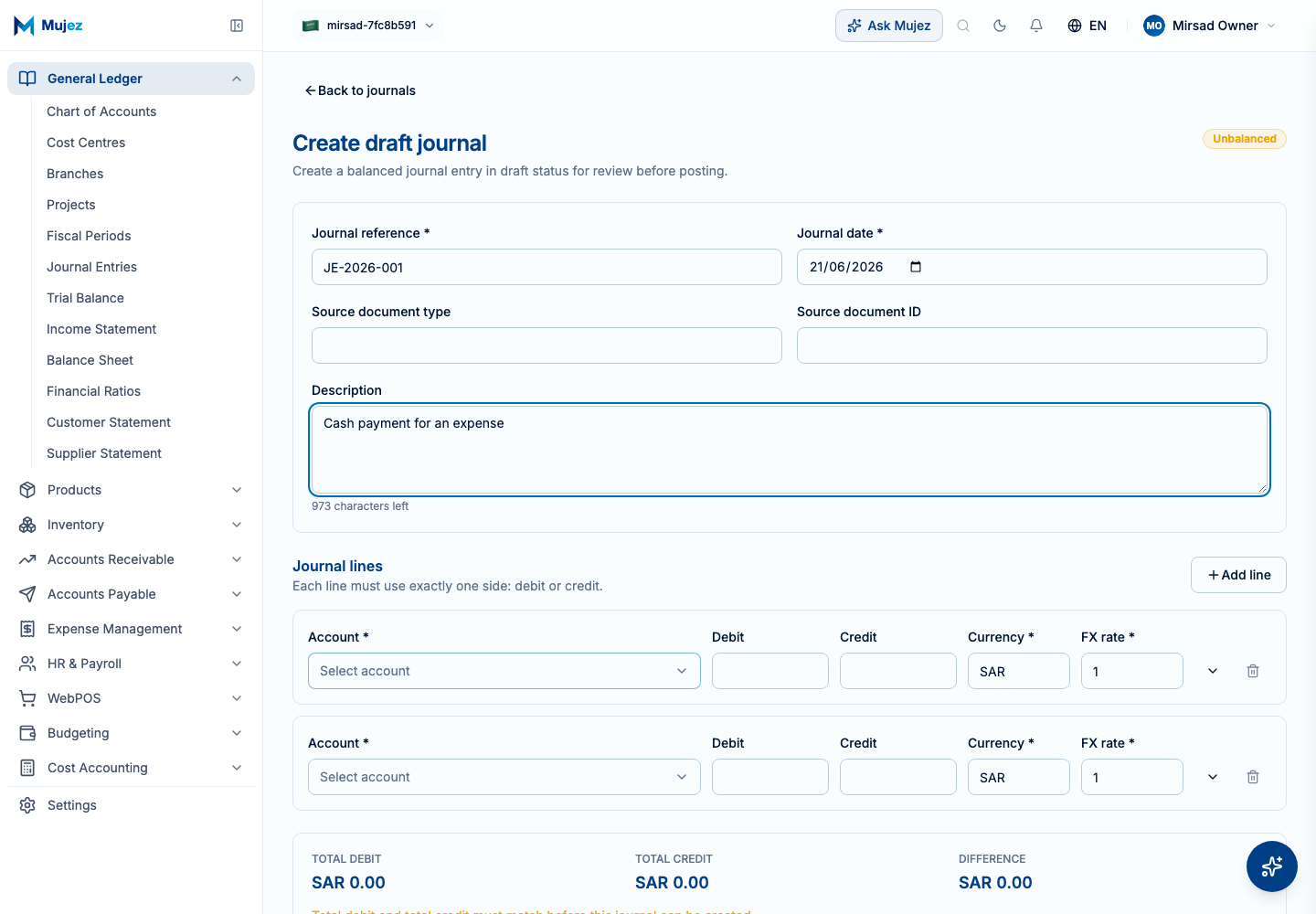
Add the first line and enter a debit amount.
Select a postable account, then type the amount in the Debit column. Only postable accounts appear in the picker.
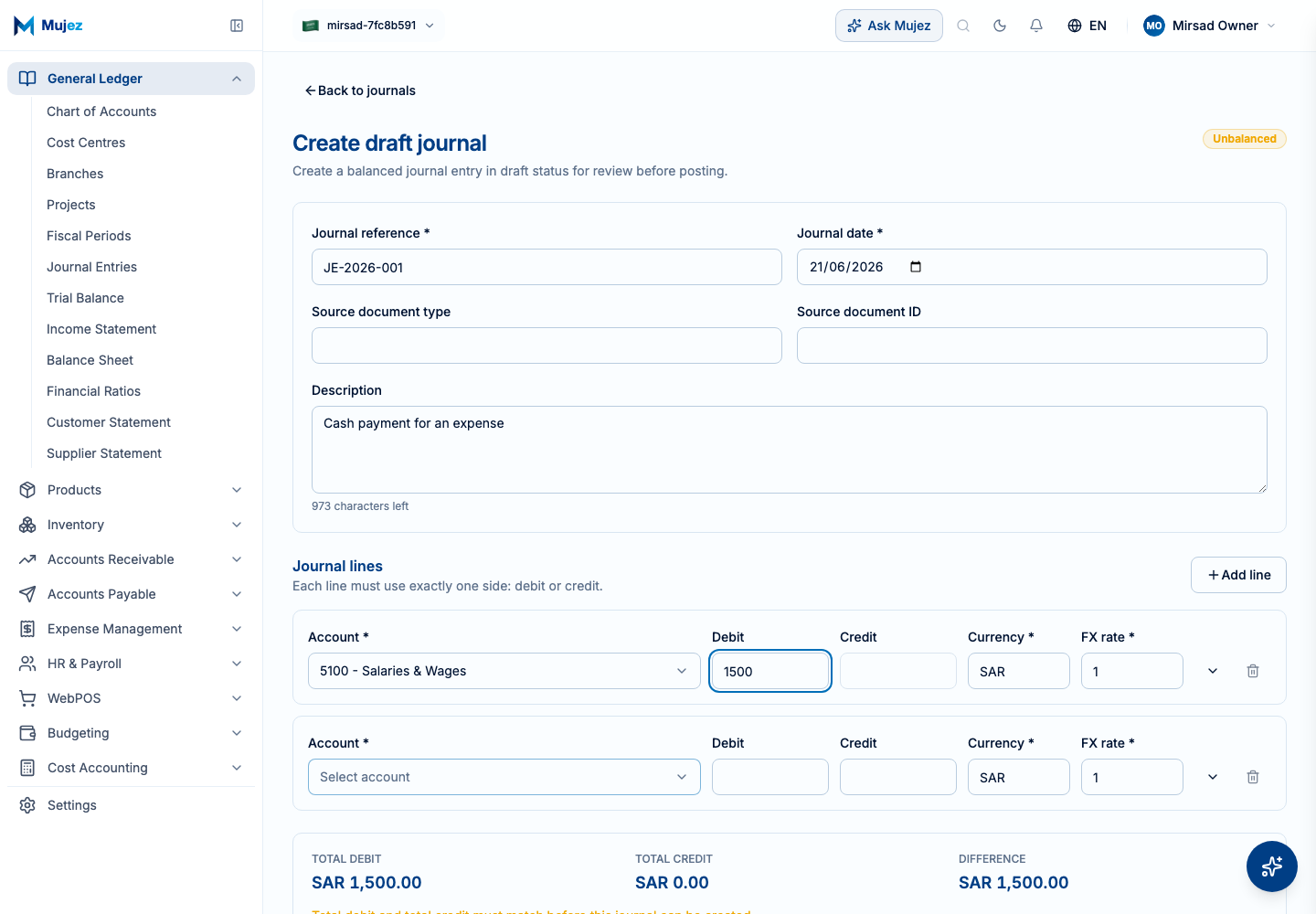
For a control account (such as Accounts Receivable or Accounts Payable) you will be asked to select the related customer or supplier.
Add the balancing line and enter the matching credit amount.
Choose another postable account and enter the same amount in the Credit column. A single line cannot hold both a debit and a credit.
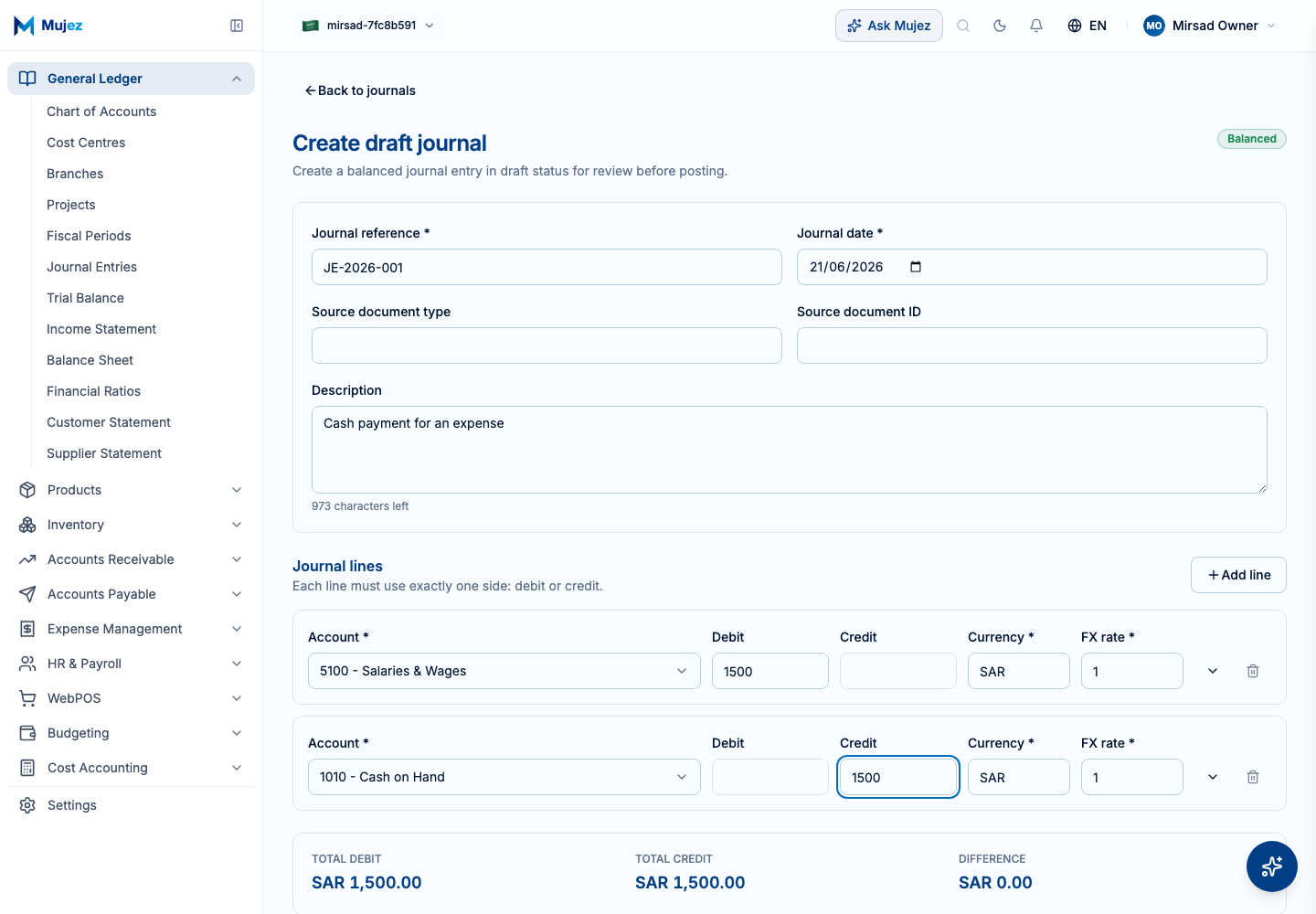
Confirm the journal is balanced.
The running totals show total debits and total credits. Save stays disabled until the two are equal.
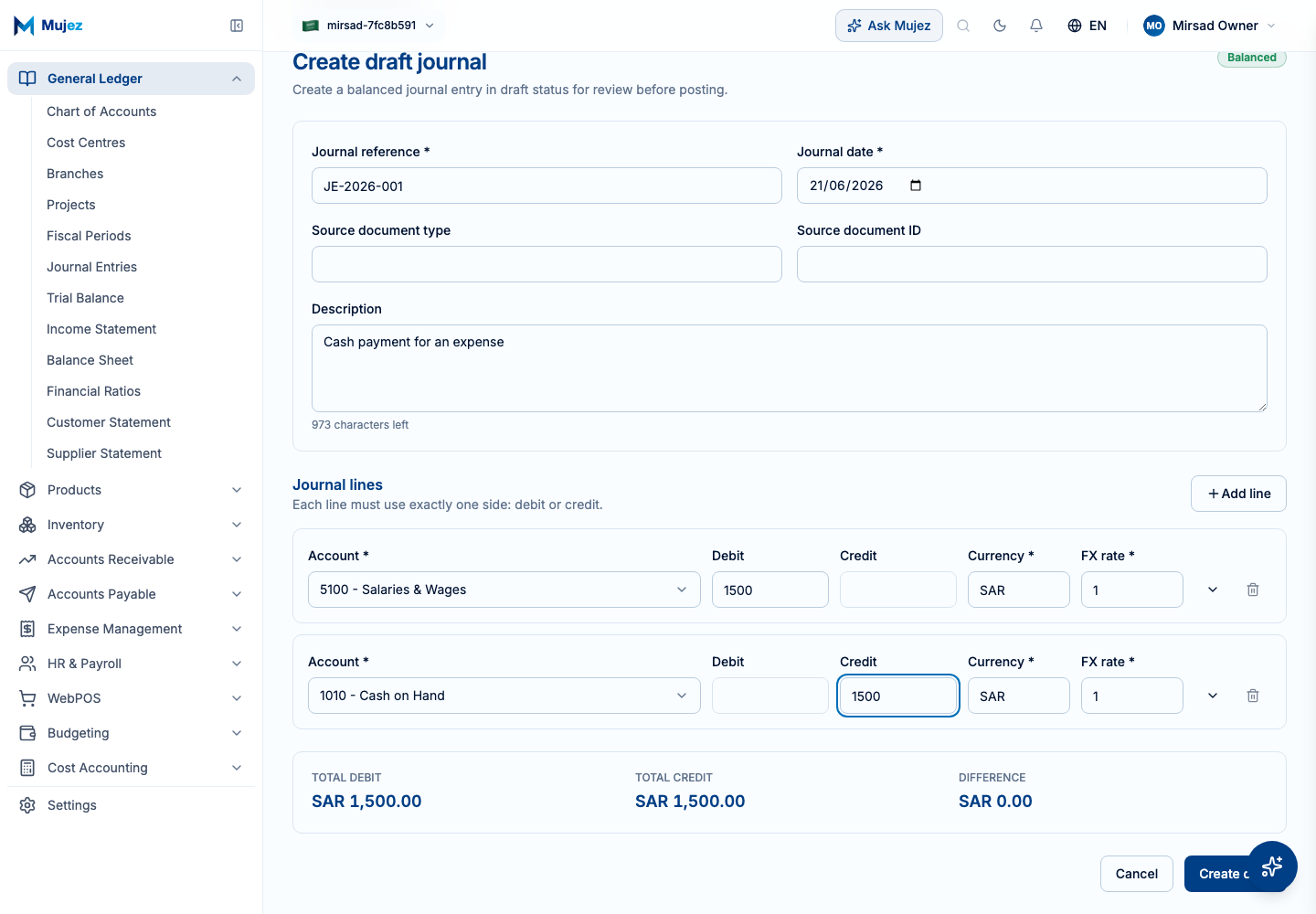
Save the journal as a draft.
The new journal opens with the status "Draft". It does not affect account balances until it is posted.
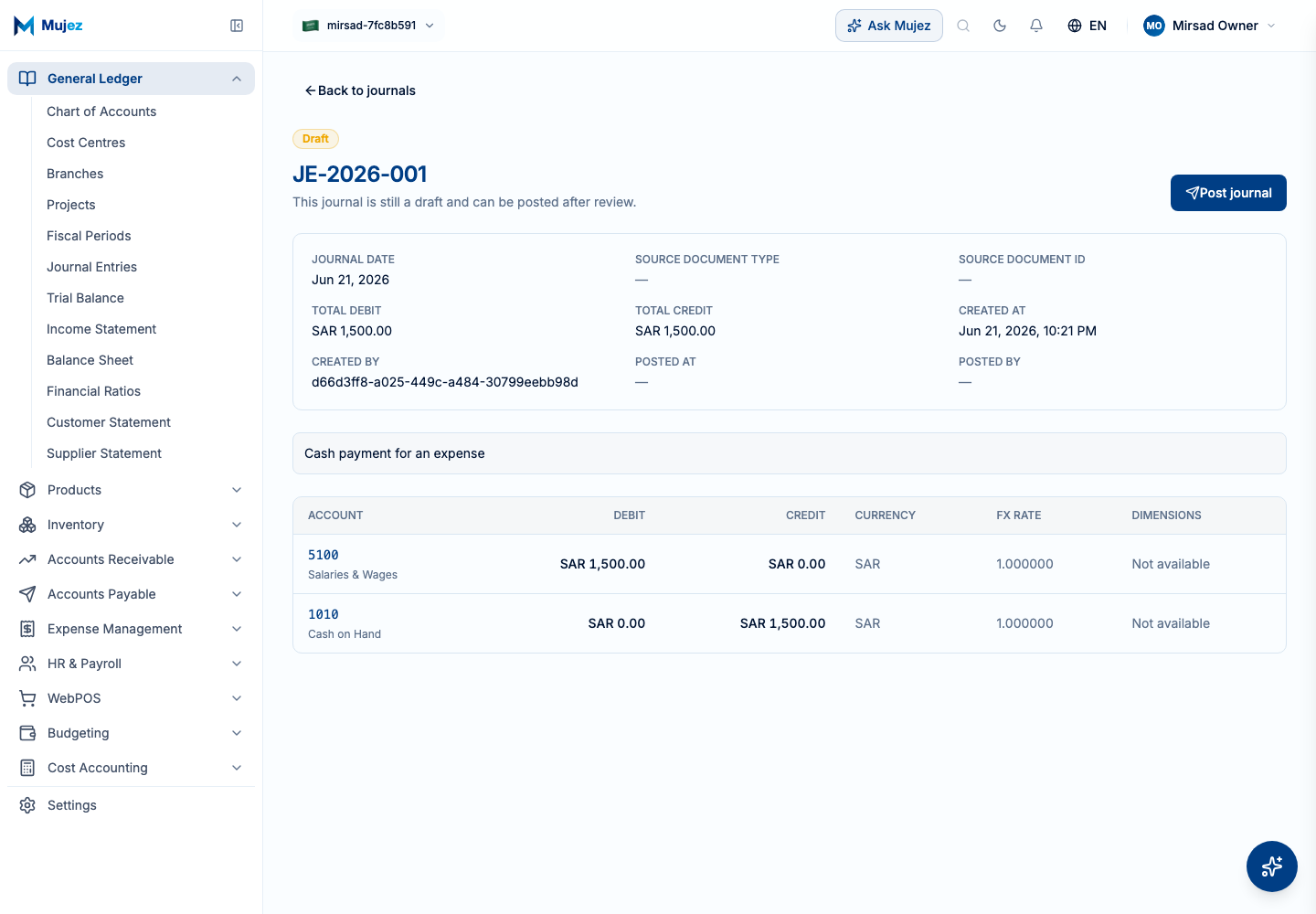
Posting is a separate, deliberate step. Review the draft first, then post it to update the ledger.